

Your club screens, with no maintenance
Digital signage for your hall: availability, bookings, open matches, tournaments, courses, camps and partners, taken straight from your back office. You put the rotation together once — after that, each screen fetches its own data.





A seven-day heat map: the greener the cell, the more courts are still free at that hour. It follows YOUR booking interval — 30, 60, 90 or 120 minutes — and never mistakes “closed” for “full”.
Court by court, what is being played right now and the slots that follow. You choose the day shown — today, tomorrow, or any day of the week. Players’ names are hidden by default.
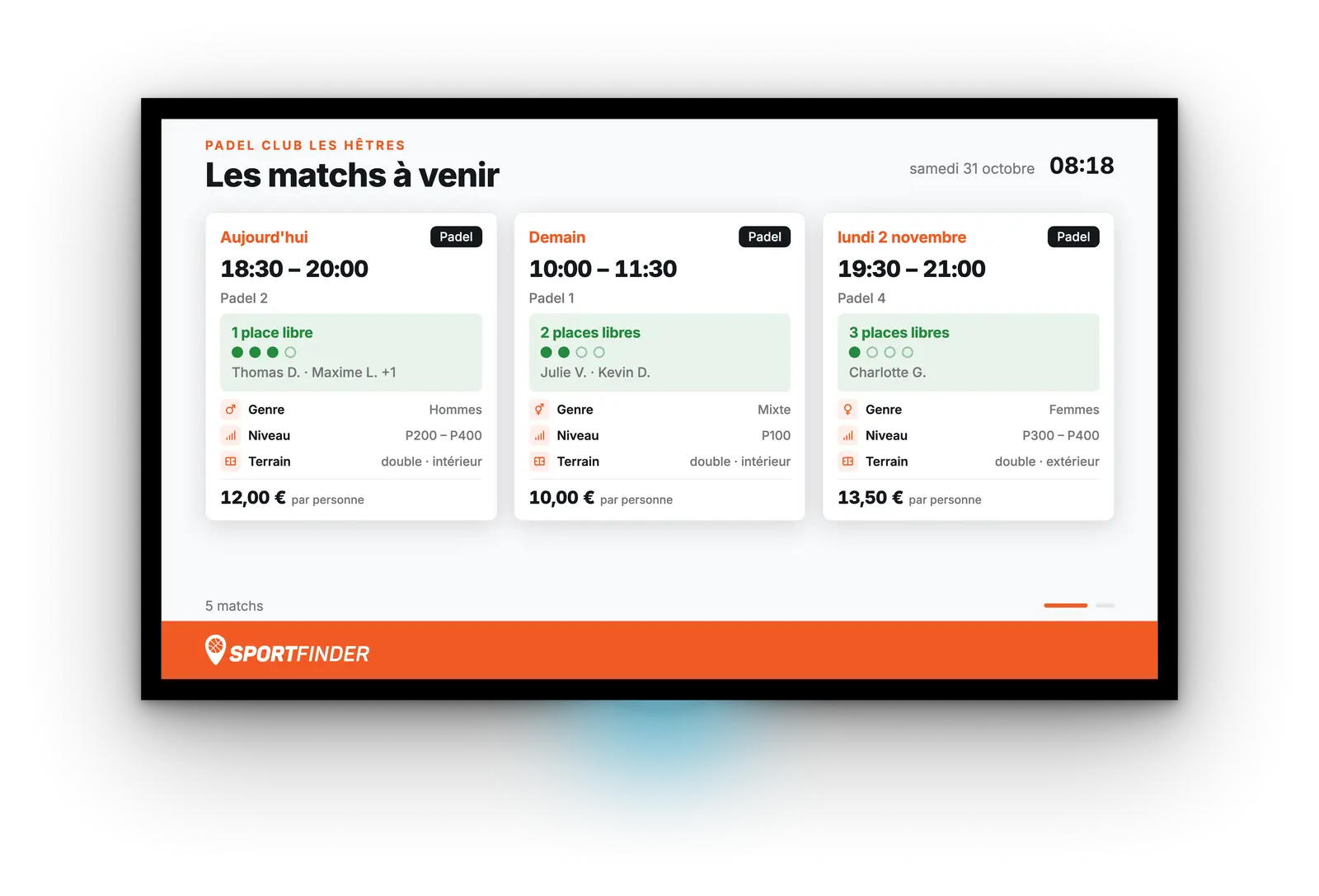
Your club’s public matches, soonest first: the places left, gender, level, court type and price per person. Whoever is looking for a fourth finds one in the hall, not in a group chat. Names are hidden by default — at most, a first name and an initial.
Three to five tournaments, with their categories, the team places and how entries are going. A QR code leads to registration in the app.
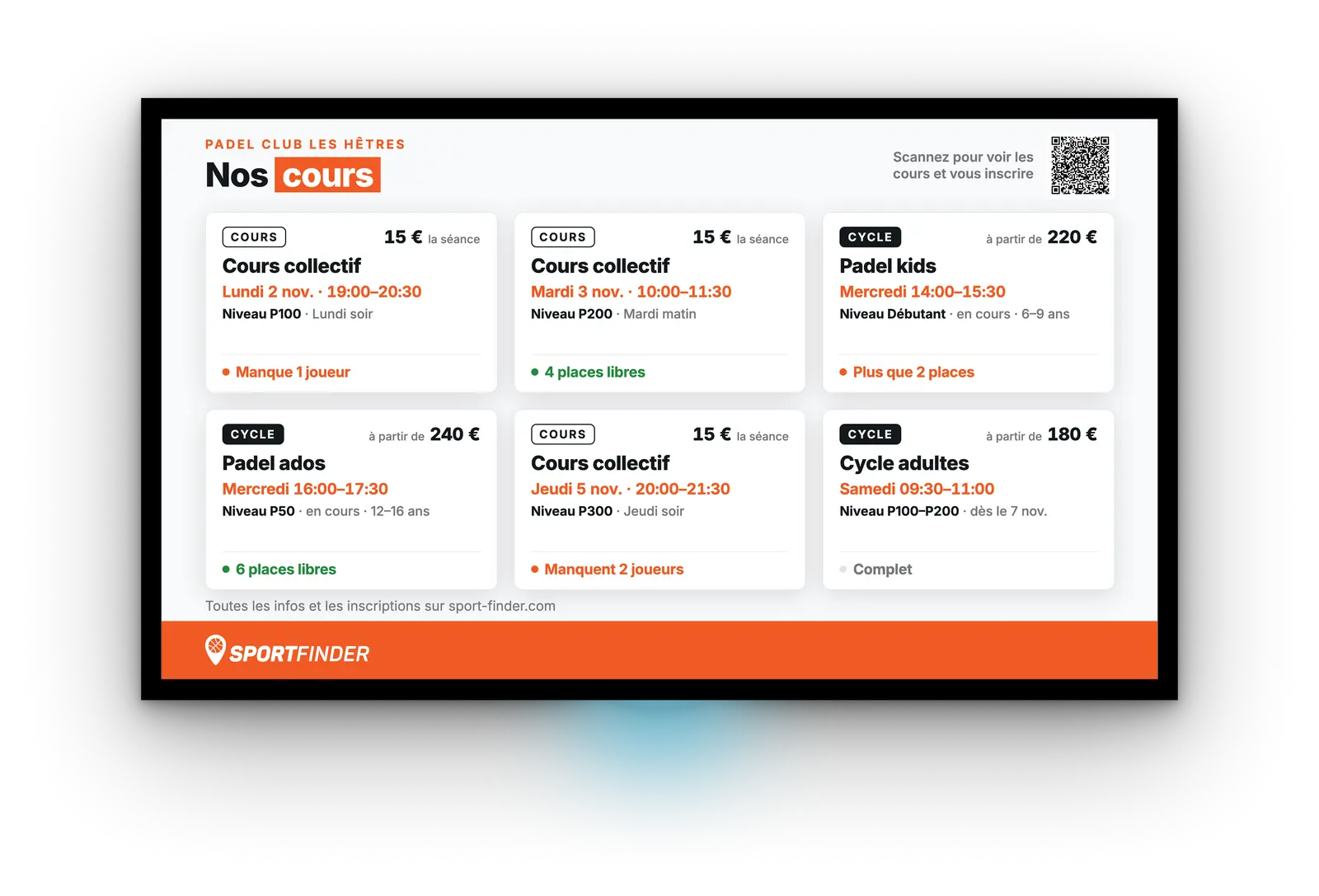
The courses taught at your club, soonest first. A course sold by the session shows its next session, its price per session and, until it reaches its minimum, how many players are still needed. A season course shows its day, ages, “from” price and places. The level appears when the group has one, and a QR code opens your courses page, where people sign up online.
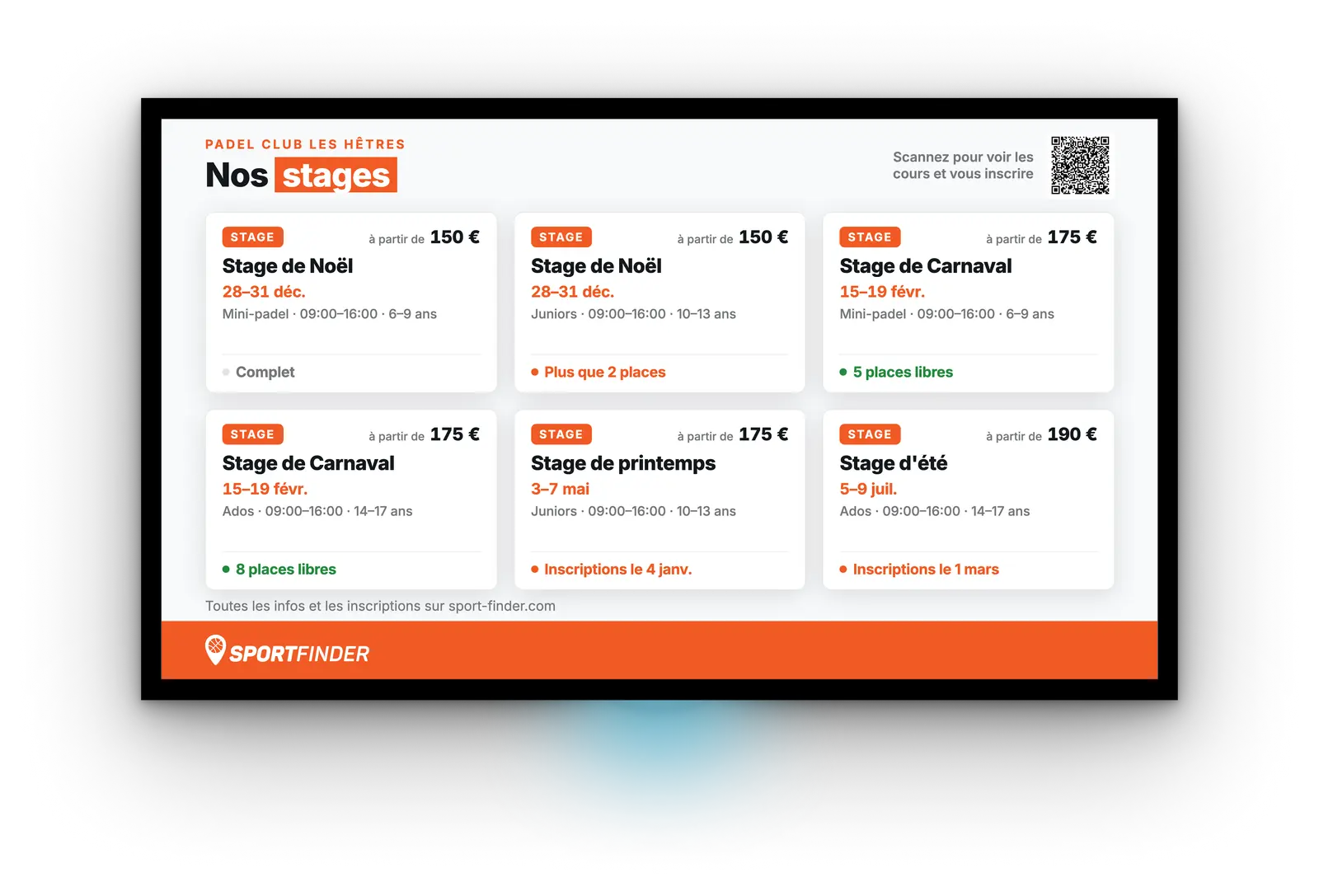
Holiday camps, soonest first: dates, times, age group and “from” price. Each card says how places stand — “only 2 places left”, “full” — or, before registration opens, the date it does. The same QR code leads to online registration.
Up to twenty-four logos, in a grid that sizes itself: large tiles for three partners, a dense wall beyond that. No columns to set.
One partner takes up the whole screen: its logo, its website and a QR code people scan from the bar. The slide cycles on its own through up to twelve partners.
Availability, Bookings, Tournaments and the two partner screens are captures taken in clubs — no mock-ups, no sample data. Open matches, Courses and Camps are rendered at our demo club: the screens are the real ones, the players and groups are fictional. Courses and Camps are two settings of the same slide, the one from the academy module.
Seven screens for a tournament day
The draw comes out, the groups play through, the final bracket fills up: your screens follow the tournament you published with the federation, without anyone copying out a schedule or typing in a score.
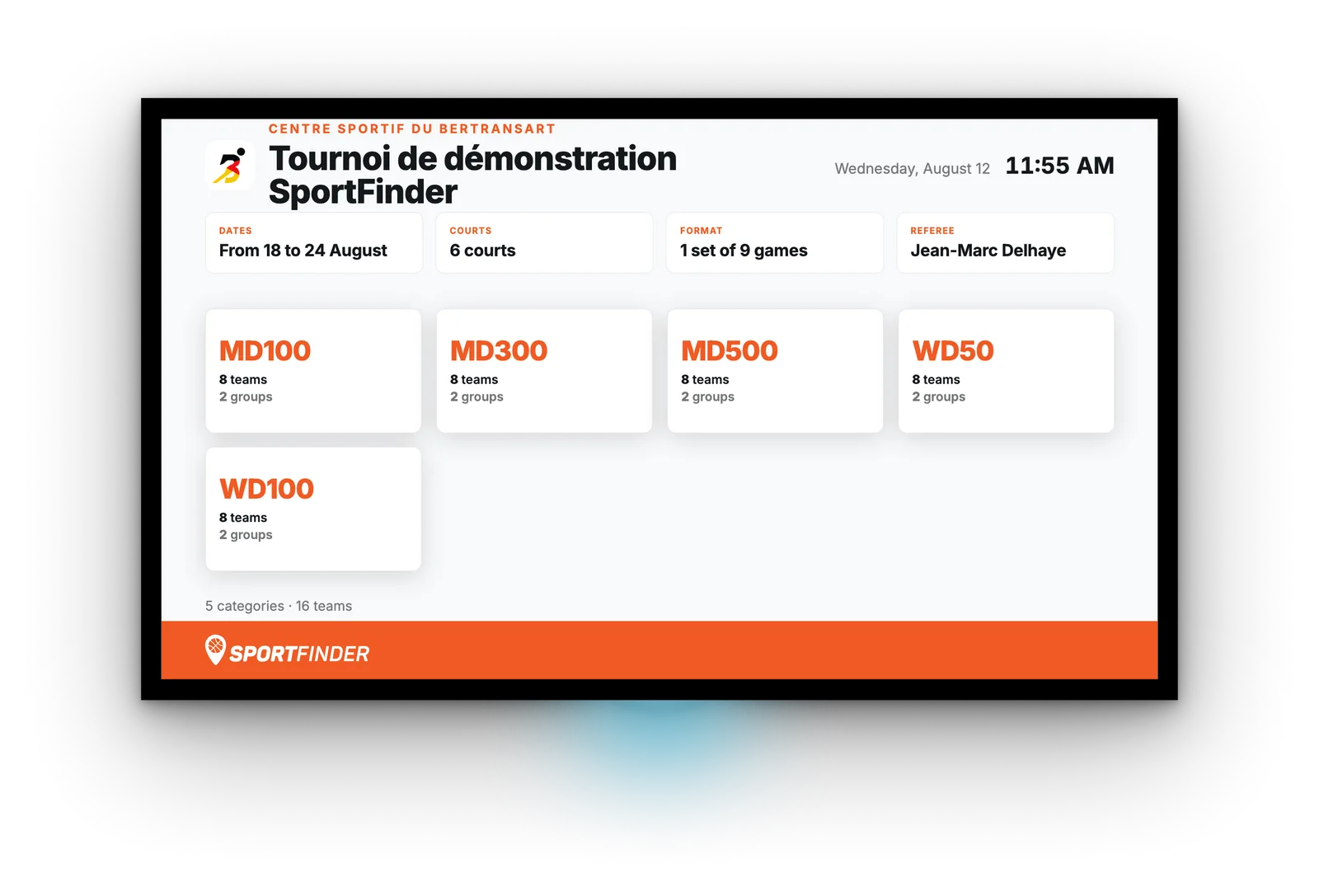
The tournament’s calling card: dates, number of courts, format, referee, and one tile per category with its teams and groups. The numbers are counted from the draw, not from the places open for entry.
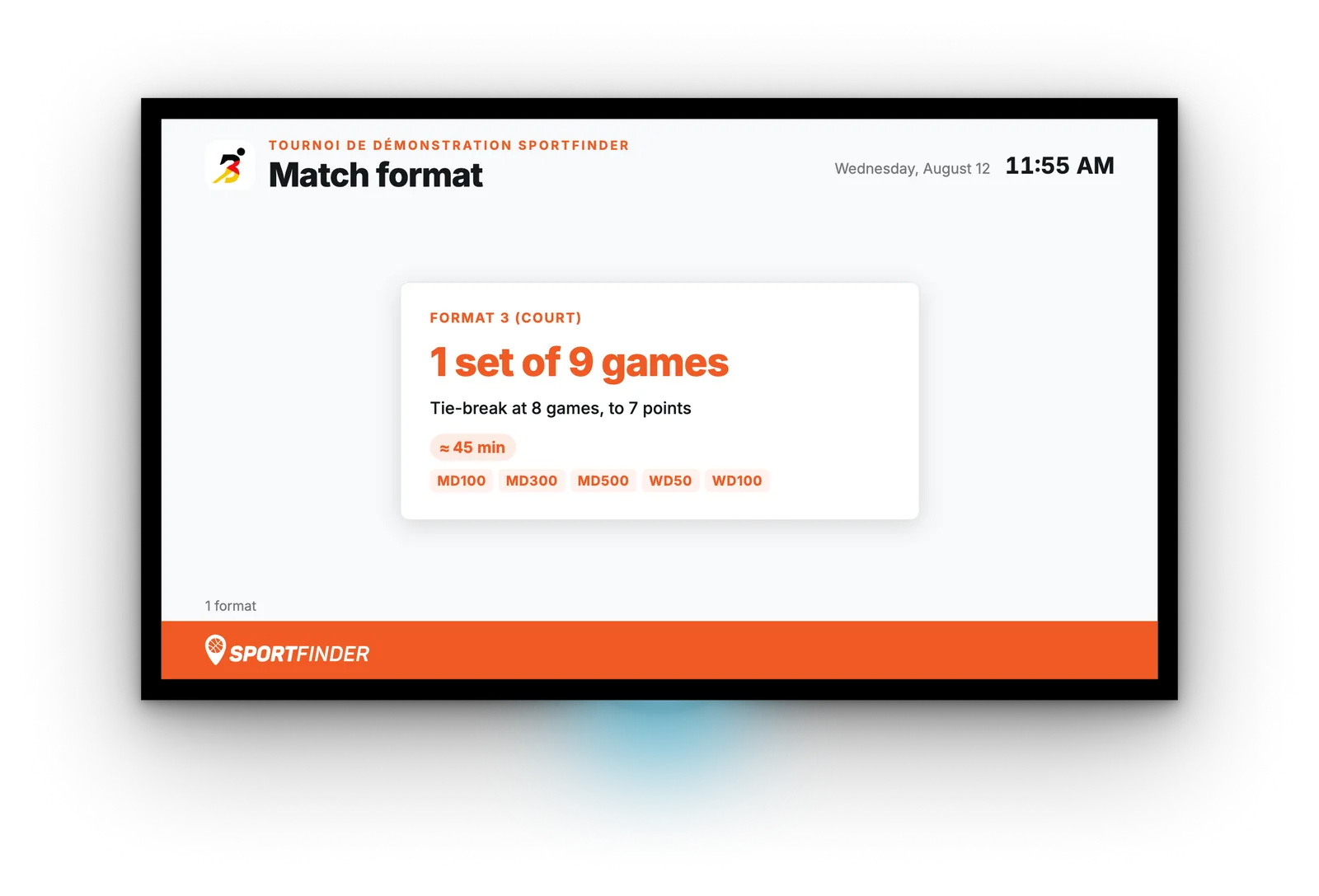
“How long do we play?” — sets, games, tie-break, typical duration, and the categories playing that format. A tournament that mixes two shows both: that is what makes a score readable on the other screens.
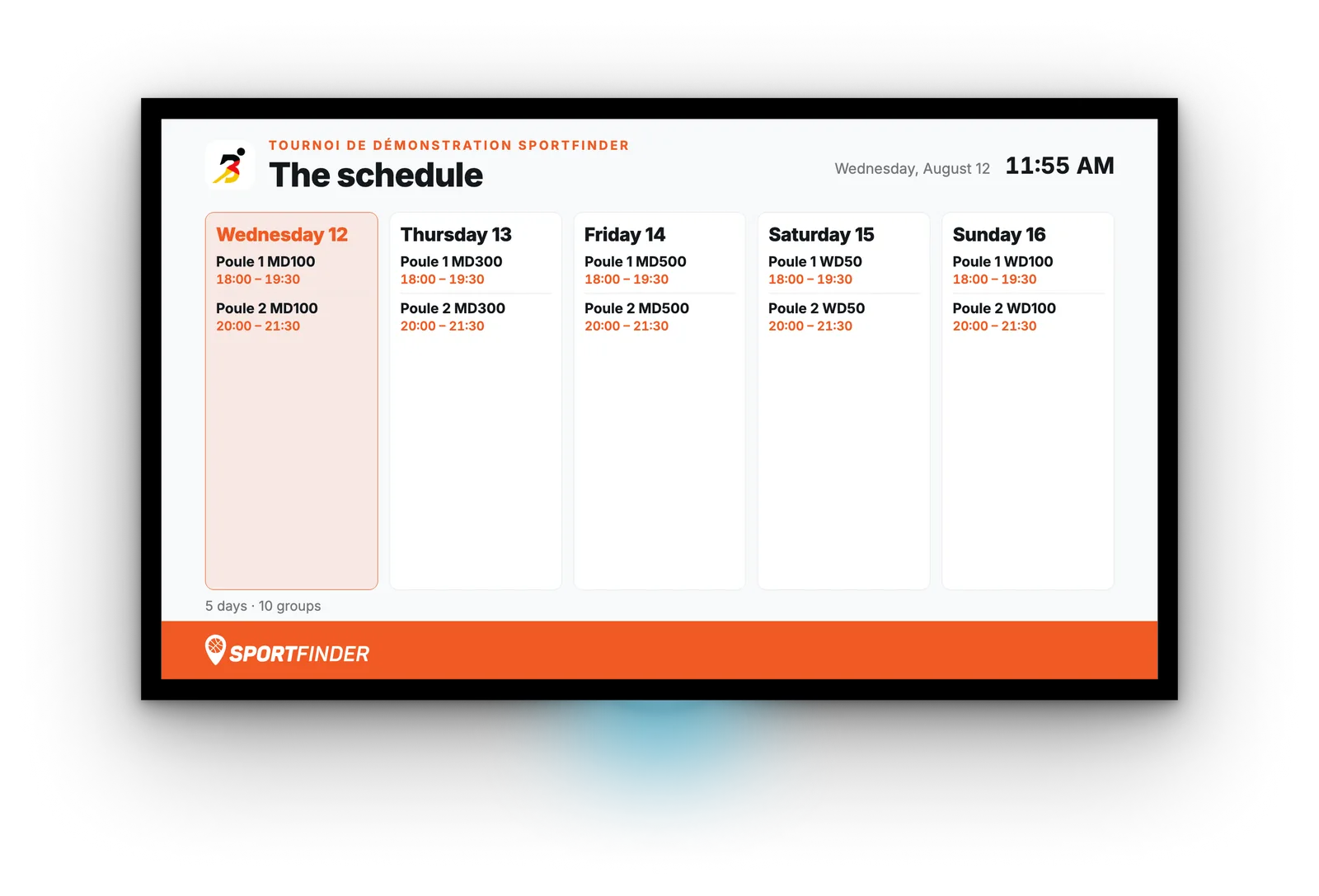
One column per evening, “Group 1 MD100, 18:00 – 19:30”. The question nobody else answers: which evening do I play, and from what time to what time. A group spread over two evenings gives one session per evening, never a slot that runs through the night.
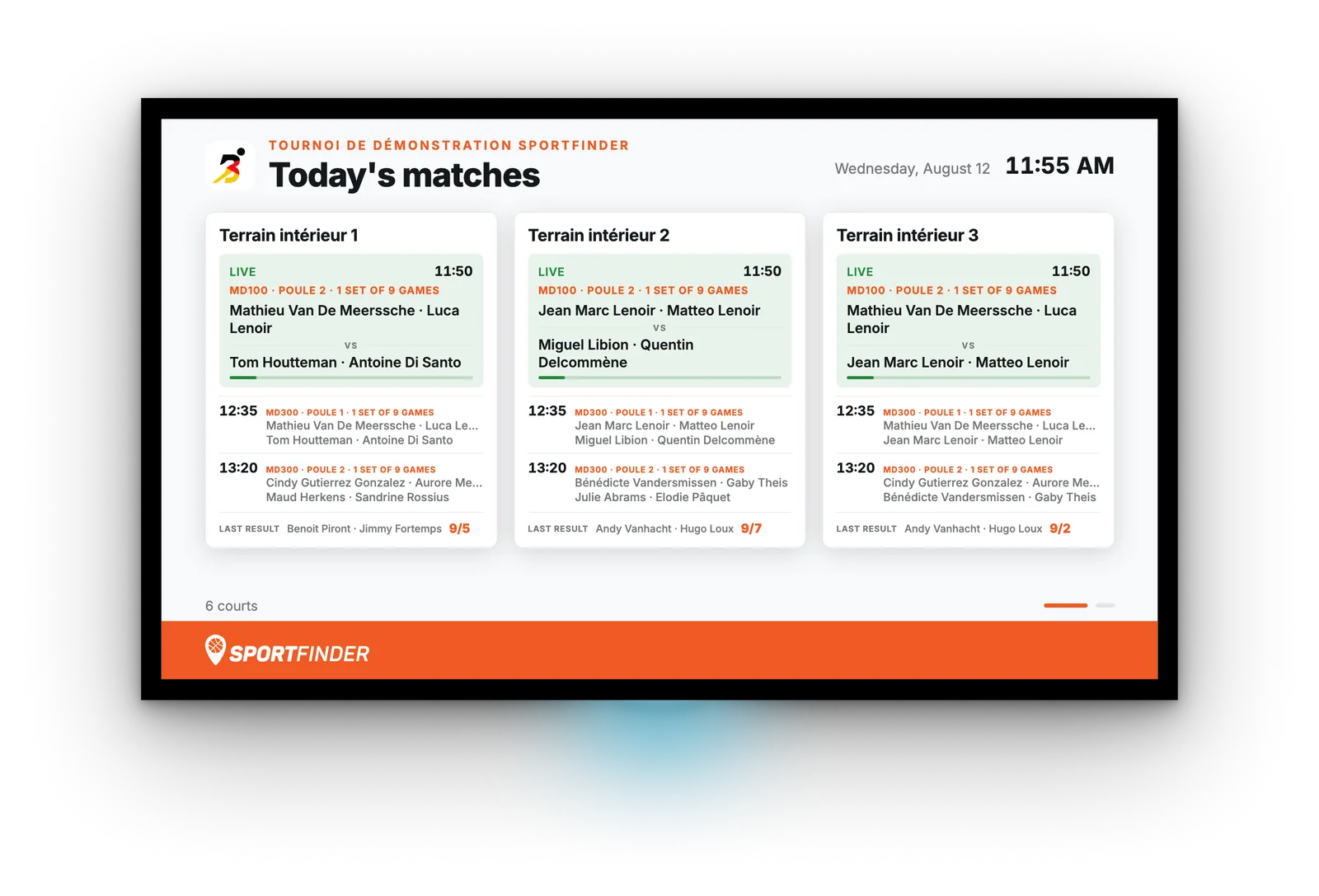
One card per court: what is on, what is next, the latest result in. Three large cards, or a grid of six courts. It is the screen that answers the “when am I on?” asked fifty times at the desk.
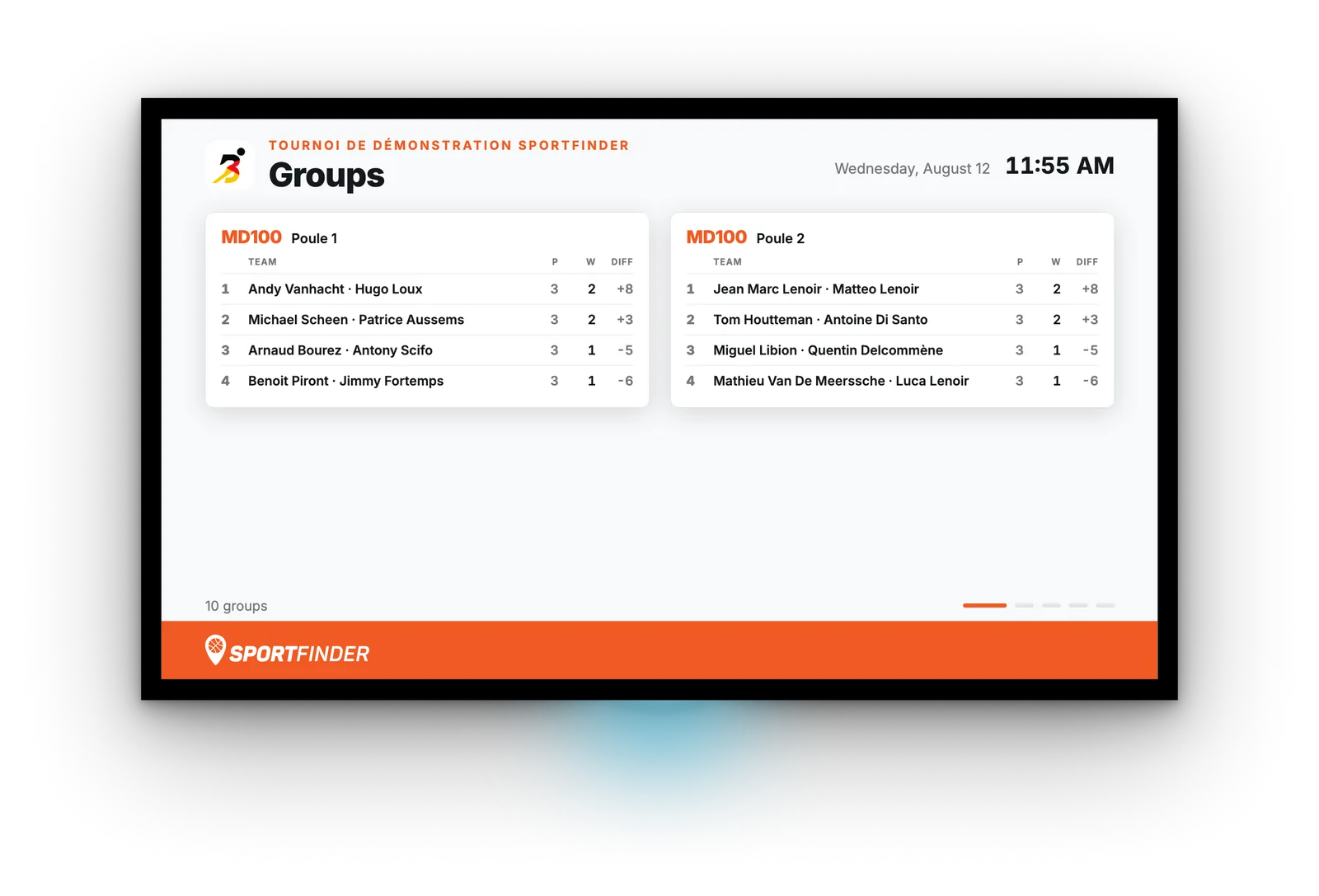
The standings of each group — matches played, wins, game difference — recalculated from the scores: the federation publishes no group standings. A group spread over two evenings keeps a single table.
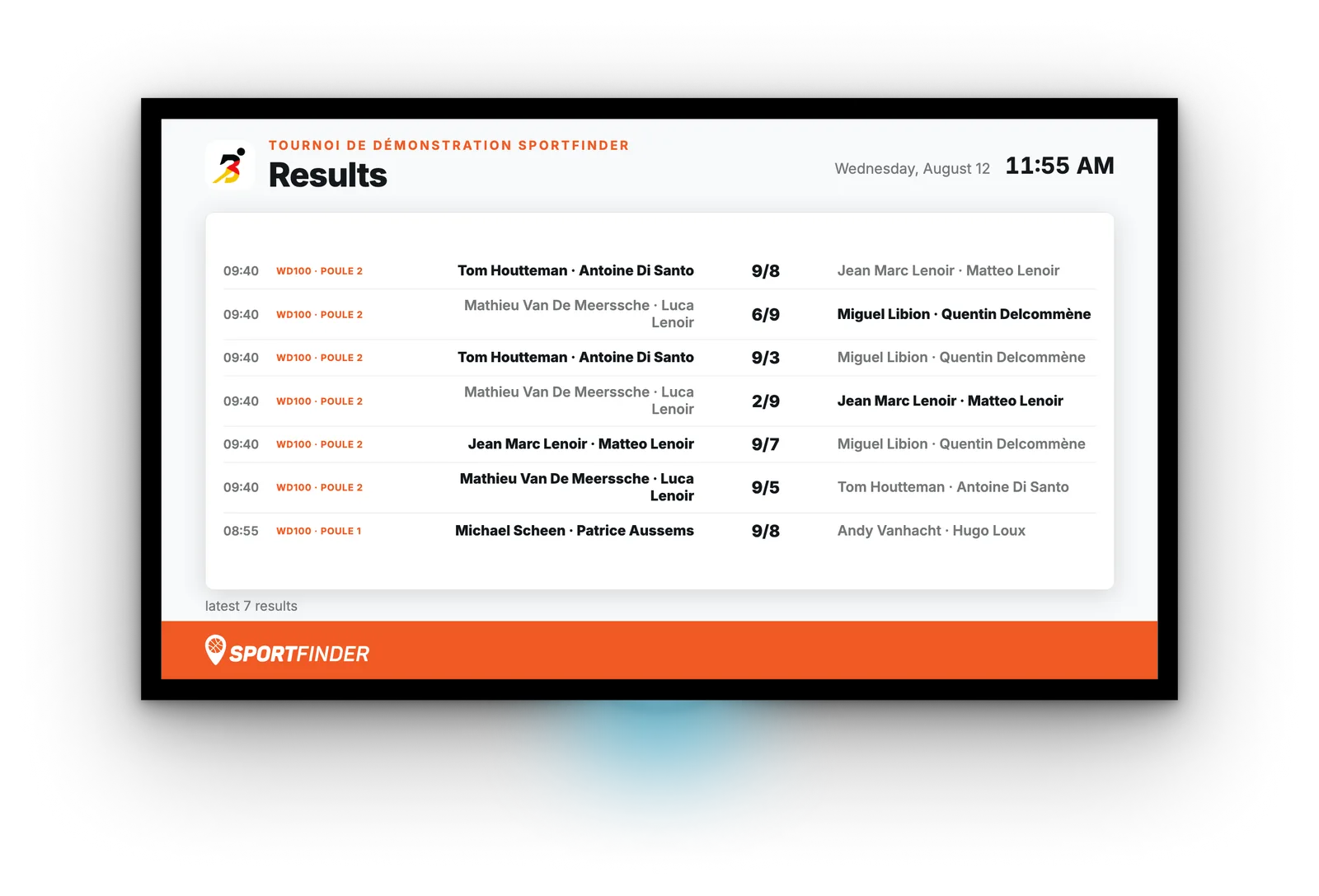
What has just finished, newest first, the two pairs either side of the score and the winner in full ink. One screen for an evening, or the whole weekend in rotation.
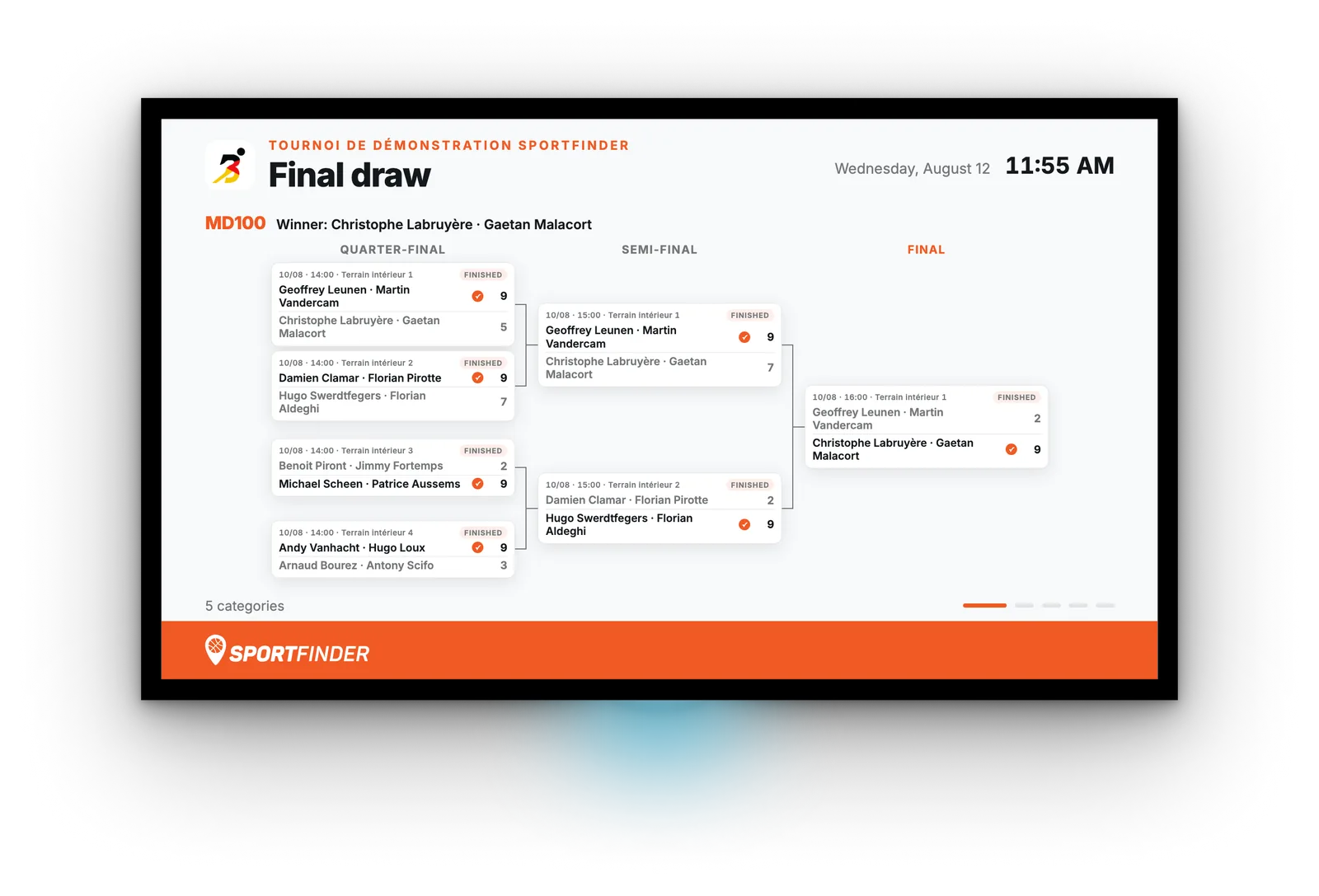
The knockout tree, one category per screen: each match with its date, time, court and set-by-set score, and the champion named as soon as the final has a readable score. Rounds only carry a name when the bracket really is one.
Screenshots of a demonstration tournament: the screens are the ones running in clubs, the players and scores are made up.
- One slide set up once, for all your tournaments: it switches on as the tournament approaches and off afterwards — there is nothing to select, and never last month’s draw on the wall.
- As soon as entries close, the draw is published: the groups and the schedule are on screen several days before the first match, exactly when players want to know who they play and on which evening.
- Group standings are calculated on our side — wins, then game difference. The federation does not publish them, and the screen shows a snapshot: it is the referee’s sheet that decides who qualifies.
- A slide with nothing to show takes itself out: no more match day to display, no more schedule on the wall. What stays are the results and the brackets, which the club keeps for three days — Monday and Tuesday are exactly when the weekend’s players come back.
- Names are shown in full, because they already are on the federation’s public page. A club that prefers “John S.” sets it in one click — but never “nothing”: a bracket that names nobody is not a bracket.
The tournaments shown are the ones you already publish, through the tournament module and the federation sync. Nothing more to key in for the wall.
Everything is run from a single page
Your screens, your slideshows and your slides in one place. Nothing to install, nothing to configure on the TV itself.


Each screen with its resolution, its last broadcast and what it is showing right now. Broadcast, preview, switch off: three buttons, and none of them means a trip to the fuse box.
A slideshow is an ordered list: media, dynamic slides, and even other slideshows included as they are. Each line has its own duration, or inherits the slideshow’s.
The form on the left, the preview on the right — not hidden behind a button. Each setting says what happens if you leave it empty: an empty title takes the template’s label, in your club’s language.
Four designs for the screen at rest — light, orange, photo, night mode. Your logo, the time, and a QR code that leads to your booking page.
Your screens are run from your phone
The tournament starts, a partner walks in, the evening winds down: the moments you want to change the screen are exactly the ones when you are not at a computer.
- The same page, in your pocket: no app to install, no cut-down version — it is the back office, adapted to the phone’s screen.
- Switch slideshow from the bar, between two rushes, without going up to the office.
- Switch the screen off as you leave, with one button, from the car park.
- Preview before you broadcast: you see on your phone what the hall is about to see.

Our colours, or yours
Four themes: SportFinder light, SportFinder dark, and the same two in your club’s colours. It is a setting, not a redesign — and your colours are the ones you have already entered for your public page.


- Your colours are already there: the custom theme uses the identity entered for your public page, with nothing to key in again.
- Unreadable pairs are ruled out automatically. A screen is read from six metres away, in a hall under neon light — a contrast that only just passes is not enough there.
- A dark theme that earns its place: in a club open in the evening, a full-page white screen is a floodlight.
The bar, the menu, the party night: everything that is not sport
A club screen is not only about courts. A free slide lets you put together a title, some text and an image from your media library, and slot it into the rotation between two data slides.


The two screens above belong to the same sports centre: the courts, the mini-golf and the brasserie share one rotation. A poster you already have goes in as it is — an image on its own is a slide like any other.
A screen wall that becomes a revenue line
It is the only advertising space in your club you do not pay to print, and the only one you can sell twice in the same season.
- Three formats for three price points: the full screen, the trio, or the wall. You sell visibility at the level the partner is willing to pay for.
- A real advert, not just an image: logo, description and a QR code to the partner’s website — scanned from the bar, which no banner tied to the fence can offer.
- One switch per partner. The contract ends, you switch them off, and they disappear from every slide at once.
- Nothing to keep an eye on: an empty partner block takes itself out of the rotation.
One slideshow per screen, prepared in advance
The hall, the bar, the changing room: not the same people, not the same moment. So each screen broadcasts its own slideshow.
The screen keeps itself up to date on its own
- Your real data, not an export: bookings, availability, tournaments and partners come from your back office. A booking taken at the desk is on screen a minute later.
- You never see the update: the screen only reloads when something has changed, with no flicker in the middle of a slide.
- A slide with nothing to say is skipped, not shown empty — and it comes back on its own as soon as the data does.
- Never a black screen: if the whole slideshow runs out of content, the club’s standby screen takes over with your logo and a booking QR code.
The tournaments you publish, the entries and the payments come from the tournament module — published once, shown everywhere.
Each screen has its own web address, which you copy from the back office. Anything that can open a page can show it.
The TV in the hall, a laptop on the counter, a tablet: you can see what it looks like at your club before buying any hardware at all.
A web address, not an installation
Each screen has its own address, which you copy from the back office. Anything that can open a web page can show it: the TV in the hall, a laptop, a tablet, a mini-PC behind the screen in the bar.
- The box is not compulsory — you can open the address on a laptop, set it down in front of the club and see what it looks like, today, without buying anything.
- What the Padel Stats TV box really brings: it keeps the screen on. TVs go into standby very quickly, and that is the problem with a display meant to run all day. It also opens up access to the rest of the Padel Stats ecosystem.
- On courts fitted with a screen, the score of the match in progress is shown. It is Padel Stats IA, a PadelDev product, that produces it: players enter points from their watch — Apple Watch, Galaxy Watch, Garmin, Wear OS — and the score goes up on the court’s screen. On a tournament day, the effect is real.
- Nothing to restart in the morning, no computer left running in an office. We plan the set-up together during the demo.
What is played under the screen can be shown on it
Players score their points from their watch or their phone, and the match screen follows — it is a web address, like the rest of your screens. And a standalone scoreboard, set up at the side of the court, is being built.
The same screens, photographed in clubs
No montages: the screens photographed where they run — above a court on a tournament day, and in the hall of the Centre sportif du Bertransart.


“We need a fourth”
A match at your club is looking for a player, and the person looking is at the bar, six metres from the screen. Open matches are shown in the hall: people find each other on the spot, not in a group chat.
The slide is already running in clubs. It shows the public matches the app already shows — a private match never appears on it — and each card’s gender and level tell at a glance who the free place is for.
The screens read the same database
The screens are part of our padel club management software: they read the same database as your online booking, your tournaments and your campaigns. Nothing to key in again, nothing to sync.
What is included in your plan is set out on our pricing page.
Screens in the club
Do I need to buy hardware?
No. TV mode is a web address you copy from the back office: anything that can open a page can show it — the TV in the hall, a laptop, a tablet, a mini-PC. So you can see what it looks like at your club before buying anything at all.
So what is the Padel Stats TV box for?
Above all, keeping the screen on: TVs go into standby very quickly, and that is the real problem with a display meant to run all day. The box plugs into the back of the screen over HDMI, picks up updates over the club’s network, and opens up access to the rest of the Padel Stats ecosystem. It stays an option, not a prerequisite.
Can match scores be shown on the court screens?
Yes. Players start the connected match from their booking and enter points from their watch or from the app; the match screen is a web address, which you show on the court’s screen like everything else. The score itself comes from Padel Stats IA, a PadelDev product, separate from SportFinder. And a standalone scoreboard, set up at the side of the court, is being built on our side.
Do I have to key in the tournament matches to show them?
No. The tournament screens read the tournament you published and its federation sync: categories, groups, times, courts and scores. You set up the slide once, and it switches on for every tournament the club runs, then off afterwards — with nothing to select. Scores appear as they are entered, just as on the referee’s sheet.
Do I have to update the display by hand?
No. Bookings, availability and tournaments come straight from your back office: it is your real data, not an export. The screen checks for changes every minute and updates itself without flickering.
What happens when there is nothing to show?
The slide concerned is skipped, not shown empty: no upcoming tournament, nothing booked in the evening, no active partner. And it comes back on its own as soon as the data does. If the whole slideshow ends up empty, the club’s standby screen takes over — never a black screen.
Can I change the display from a phone?
Yes. The back office works from a phone just as it does from a computer — it is the same page, adapted to the screen, with no app to install. You switch slideshow from the bar, preview before you broadcast, and switch the screen off as you leave.
Can I connect several TVs?
Yes, as many as the club has. Each screen broadcasts its own slideshow: reception can show availability and partners while the screen in the bar shows the tournaments.
Can I prepare a display in advance?
Yes. You put together as many slideshows as you like and switch them on when the time comes: a tournament mode, an end-of-year display, a themed evening. Moving from one to the other does not mean redoing the configuration.
Can the screen use my club’s colours?
Yes. Two SportFinder themes (light and dark) and two themes in your club’s colours, which use the identity already entered for your public page. Colour pairs that cannot be read from six metres are ruled out automatically.
Can I show things other than sport?
Yes. A free slide lets you put together a title, some text and an image from your media library: the bar menu, the dish of the day, a party night, a camp, the holiday opening hours. It slots into the rotation between two data slides.
30 minutes to see what it looks like at your club
We put together a slideshow on your data during the demo — your courts, your tournaments, your partners — and plan the set-up of your screens.